Want to offer instant answers to your visitors even at 3 AM? Learning how to integrate AI chatbot into your website is one of the smartest moves you can make right now. It saves time, improves user experience, and keeps people engaged longer.
Whether you run a small blog, an e-commerce store, or a service-based business, adding a chatbot does not have to be complicated. In this guide, we’ll walk you through everything you need to know, from choosing the right tool to going live in a few clicks.
Before diving into this blog post, make sure to check out our previous article on 5 Best Free AI Data Analytics Tools for Businesses in 2026. In that guide, we explored the top Free AI Data Analytics Tools for Businesses that can help you better understand data analytics, improve decision-making, and work more efficiently with AI-powered solutions.
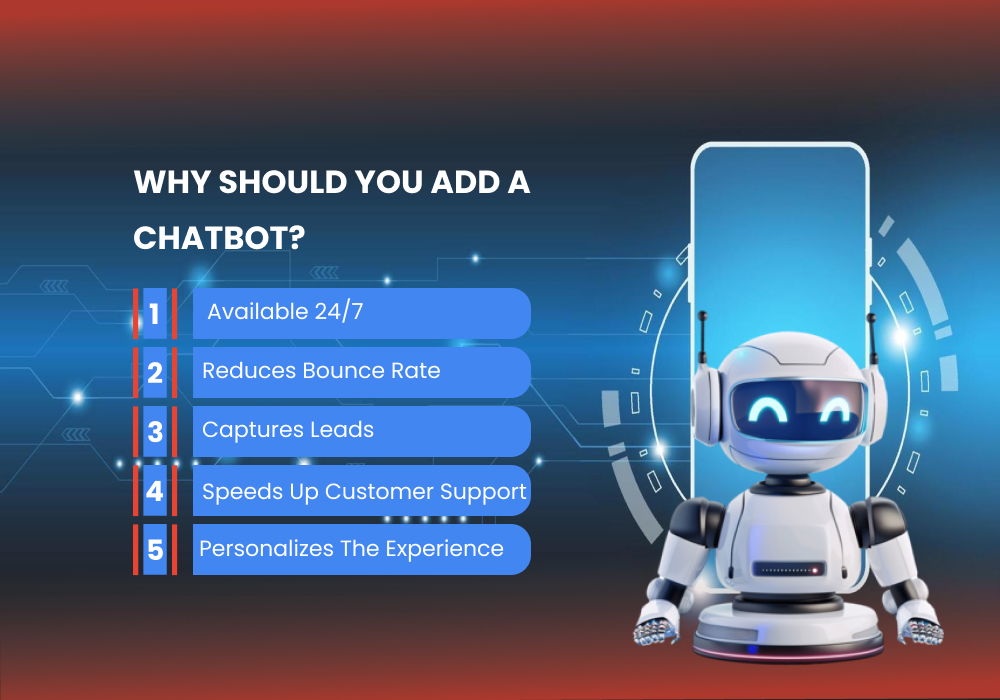
Why Should You Add a Chatbot to Your Website?
Visitors expect quick answers. If they don’t find what they need within seconds, they leave. A chatbot fills that gap perfectly. It greets users, answers common questions, collects leads, and even books appointments, all without you lifting a finger.
Here are a few solid reasons to consider it:
- Available 24/7 without any additional staff cost
- Reduces bounce rate by keeping visitors engaged
- Captures leads even when you’re offline
- Speeds up customer support response times
- Personalizes the experience for every visitor
Step-by-Step: How to Integrate AI Chatbot in Your Website
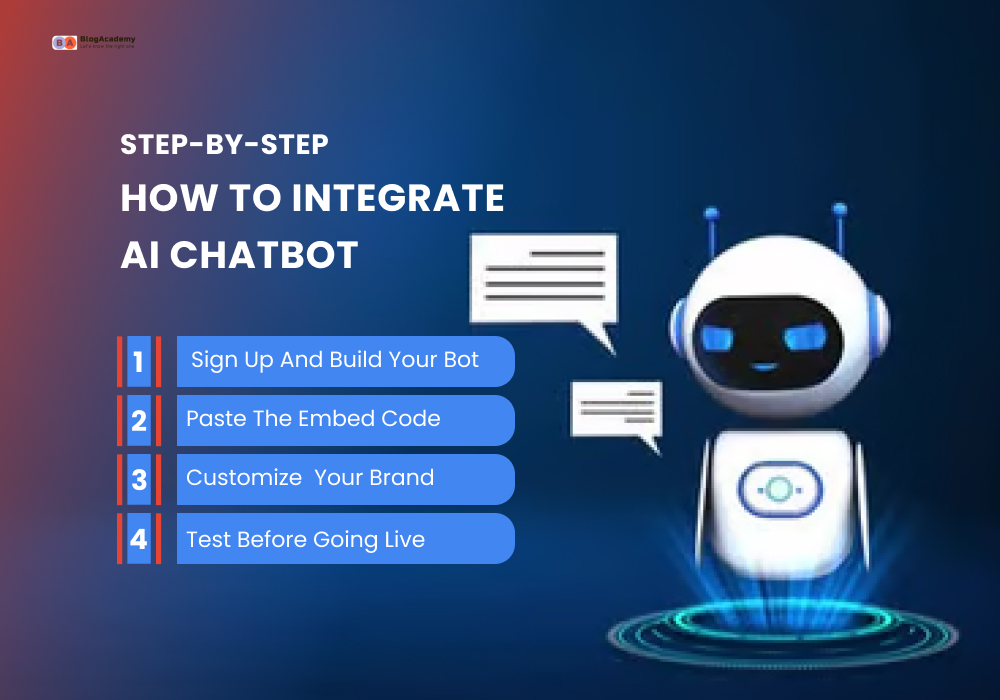
Step 1: Choose the Right Chatbot Platform
There are several reliable platforms you can use, including Tidio, Intercom, Drift, Botpress, and ChatBot.com, all of which are among the most popular. Each one offers a free tier to help you get started. Pick one that fits your budget and the type of website you run.
Step 2: Sign Up and Build Your Bot
Once you pick a platform, create a free account. Most tools offer a drag-and-drop builder, so you don’t need any coding knowledge. Set up welcome messages, common question flows, and fallback responses for things the bot doesn’t know yet.
Step 3: Copy and Paste the Embed Code
After you build your bot, the platform will provide a small JavaScript snippet. Paste it just before the closing tag on your website. If you’re using WordPress, you can use a plugin like WPCode or install it through your theme settings.
Step 4: Customize It to Match Your Brand
Change the chatbot’s colors, name, and greeting message to match your website style. A chatbot that looks like part of your brand feels more trustworthy to visitors. Add your logo, adjust the chat bubble position, and write a friendly opening line.
Step 5: Test Before Going Live
Always test the bot from a user’s perspective. Click through the conversation flows, check that links work, and make sure the bot responds correctly to common inputs. A few minutes of testing can save you from embarrassing errors later.
Best Practices When You Integrate AI Chatbot
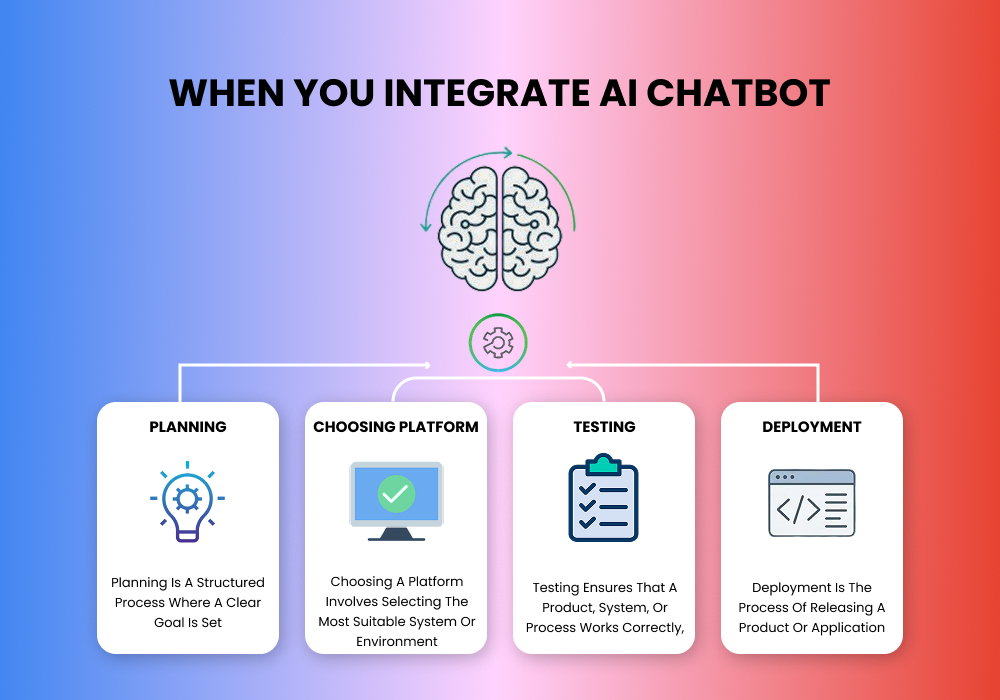
Getting the chatbot live is just the beginning. To get real results, keep these tips in mind:
- Keep conversations short and clear. Visitors don’t want to read long paragraphs inside a chat window.
- Add a human handoff option. Some users will want to speak to a real person; make that easy to access.
- Update responses regularly. As your business changes, make sure your bot’s answers stay accurate.
- Use it for lead generation. Ask for email addresses or phone numbers early in the conversation.
Frequently Asked Questions
Do I need coding skills to integrate AI chatbot on my website?
No. Most modern chatbot platforms offer no-code builders with simple embed codes. You just copy and paste one line of script into your website.
Is it expensive to add a chatbot to my site?
Not at all. Many platforms like Tidio and Botpress offer free plans. Paid plans typically start at $10–$30/month, depending on features and traffic volume.
Can a chatbot handle complex customer questions?
Basic bots handle FAQs well. For complex queries, you can set up a handoff to a live agent or connect the bot to an AI model like GPT for smarter responses.
Will a chatbot slow down my website?
A well-built chatbot script has minimal impact on page speed. Most platforms are optimized to load asynchronously, so it won’t affect your site’s performance.
Can I use a chatbot on a WordPress website?
Yes! WordPress makes it easy. You can use a dedicated plugin or simply paste the embed code using a plugin like WPCode or through your theme’s footer settings.
Ready to Add a Chatbot to Your Website?
Explore more tutorials, tools, and beginner-friendly tech guides at BlogAcademy. Start learning smarter today, completely free. Visit BlogAcademy.tech.